Setup settings on Android
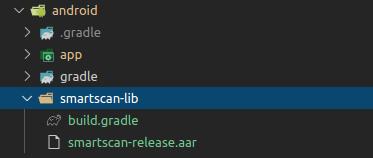
2.1 arr file
Create folder smartscan-lib in android path.
Paste all the content of smartscan-lib folder.
2.2 jniLibs folder
Place all the content of the jniLibs folder in android/app/src/main.

2.3 Enable permissions and activity in AndroidManifest.xml
If you don't use the demo provided by Icare don't forget to check the next steps.
2.3.1 Permissions
In order to have access to the camera, you must enable all the permissions :
<!-- smart scan permissions -->
<uses-permission android:name="android.permission.FLASHLIGHT" />
<uses-permission android:name="android.permission.CAMERA" />
<uses-permission android:name="android.permission.VIBRATE" />

<uses-feature android:name="android.hardware.camera2.full" />
<uses-feature
    android:name="android.hardware.camera.autofocus"
    android:required="false" />
<uses-feature
    android:name="android.hardware.camera.flash"
    android:required="false" />
<!-- smart scan permissions -->
2.3.2 Activity
Then you must add the smartscan activity to the manifest :
<!-- smart scan activity -->
<activity
    android:name=".ScanActivity"
    android:theme="@style/Theme.AppCompat"
    >
</activity>
<!-- smart scan activity -->
2.3.3 AndroidManifest example
Here an example of AndroidManifest :

2.4 Enable smartscan lib (settings.gradle)
In the android/settings.gradle file you must enable smartscan for gradle.
You must change this line :
include ':app'
with :
include ':app', ':smartscan-lib'
2.5 Enable libraries (src/build.gradle)
You must add the librairies in the android/app/src/build.gradle, into dependecies section :
// Smartscan libraries <START>
implementation fileTree(include: ['*.jar'], dir: 'libs')
implementation 'androidx.appcompat:appcompat:1.0.0'
implementation 'com.android.support:appcompat-v7:28.0.0'
implementation 'androidx.legacy:legacy-support-v4:1.0.0'
implementation 'com.google.android.material:material:1.0.0'
implementation project(':smartscan-lib')
// Smartscan libraries <END>
The file must look like the following :

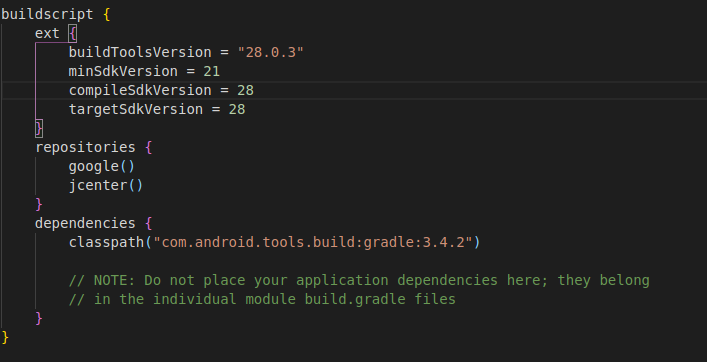
2.6 Check minimum version
The minimal SDK version supported by SmartID Scan is 21.
Please ensure that the minSdkVersion is set to 21 or more.
minSdkVersion = 21
2.7 Check that androidX and jetifier enabled
You must have android X and jetifier enabled to be able to use smartscan.
Check that the android/gradle.properties.
# Those options must be true !
android.useAndroidX=true
android.enableJetifier=true